Your School's Whatsapp Group - Join Us now
WAEC and NECO CBT Software for Computers and Laptops - Candidates, Schools, Centres, Resellers - 100% Offline -Download Now

Federal College Of Forestry, Jos ND admission list, 2020/2021 session

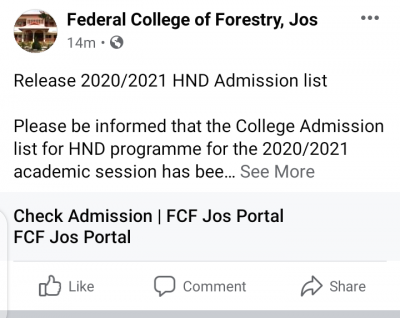
This is to inform candidates who applied for admission to the Federal College Of Forestry, Jos that the College Admission list for ND programme for the 2020/2021 academic session has been released.

Post-UTME Past Questions - Original materials are available here - Download PDF for your school of choice + 1 year SMS alerts
WAEC and NECO CBT App for Mobile Devices - Candidates, Schools, Centres, Resellers - 100% Offline -Download Now
Post UTME Past Questions Agent

Procedure for FCFJOS Online Screening for Admitted students.

Federal College Of Forestry, Jos ND admission list, 2020/2021 session

To be eligible for screening, Candidates must have uploaded their O’level results on the JAMB portal.

1. Visit https://portal.fcfjos.edu.ng/admission/jambites/screening

Post-UTME Past Questions - Original materials are available here - Download PDF for your school of choice + 1 year SMS alerts
WAEC and NECO CBT Software for Computers and Laptops - Candidates, Schools, Centres, Resellers - 100% Offline -Download Now
Post UTME Past Questions Agent

2. Type your JAMB Registration No in the required textbox 

3. The system logs you into your temporary personalized dashboard where the status of your admission is displayed.

4. Select your number of sittings then fill your O level results in the screening form.

5. Upload your O level results (WAEC or NECO or NABTEB or GCE) in JPEG or PDF format. The file size should not be more than 150 KILOBYTES.

6. Click on the Submit Button. 

7. After 2 days, Visit https://portal.fcfjos.edu.ng/check/admission to confirm the status of your screening and further instructions.

Procedure for Checking Screening Status

1. Go to FCFJOS admission portal https://portal.fcfjos.edu.ng/check/admission

2. Type your JAMB Registration No (Receipt No): in the required field.

3. Finally, click on the CHECK button to access your admission Screening status.

4. Follow the next instruction on the portal for Acceptance fee and School fee payment.

Related Posts

WAEC and NECO CBT Software for Computers and Laptops - Candidates, Schools, Centres, Resellers - 100% Offline -Download Now
WAEC and NECO CBT App for Mobile Devices - Candidates, Schools, Centres, Resellers - 100% Offline -Download Now
Post-UTME Past Questions - Original materials are available here - Download PDF for your school of choice + 1 year SMS alerts

Comments ({{ comment_count }})

Please wait...

{{ settings.no_comment_msg ? settings.no_comment_msg : 'There are no comments' }}

Quick Questions

Ask Your Own Question
To get notifications when anyone comments,
Follow Comments

Post Comment

Please don't post or ask to join a "Group" or "Whatsapp Group" as a comment. It will be deleted. To join or start a group, please click here

{{ quote.posted_by.display_name }}
{{ settings.form_textarea_description }}
 
Post UTME Past Questions Agent
Your School's Whatsapp Group - Join Us now
WAEC and NECO CBT Software for Computers and Laptops - Candidates, Schools, Centres, Resellers - 100% Offline -Download Now
Post-UTME Past Questions - Original materials are available here - Download PDF for your school of choice + 1 year SMS alerts
WAEC and NECO CBT App for Mobile Devices - Candidates, Schools, Centres, Resellers - 100% Offline -Download Now
Your School's Whatsapp Group - Join Us now
WAEC and NECO CBT App for Mobile Devices - Candidates, Schools, Centres, Resellers - 100% Offline -Download Now
WAEC and NECO CBT Software for Computers and Laptops - Candidates, Schools, Centres, Resellers - 100% Offline -Download Now
Post UTME Past Questions Agent